Importing Areas
In addition to drawing areas to define a location of interest, you can also import existing areas. You can import an area from a shapefile, KML, or GeoJSON file; or you can import an area using a well-known text (WKT) string.
-
Select New Area. The New Area menu displays.

Add Area menu.
-
Do one of the following, depending on the type of area you want to import.
 Import a Shapefile, KML, or GeoJSON
Before you can use this feature, you must complete your registration. See Completing Your Registration.
-
Select Import.
-
In the dialog, do one of the following to select the file you want to import:
-
Drag and drop a file from your computer into the dotted area.
-
Select Select from Computer. In the dialog that opens, locate the file you want to import, then select Open.
Supported file types:
-
Shapefile
-
KML
-
GeoJSON
You can upload up to 1000 areas in a single zip file. You can also upload multiple areas without zipping the file.
The file uploads.
-
Added areas are indicated by a green check
 .
.Imported areas are auto-named in two ways:
-
Unique ID By default, the system assigns a unique ID to each area (e.g., filename + 1, 2, 3, etc.).
-
"Name" Field If the file you uploaded contains a "name" field, the system uses the specified name(s) from the file to name each area.
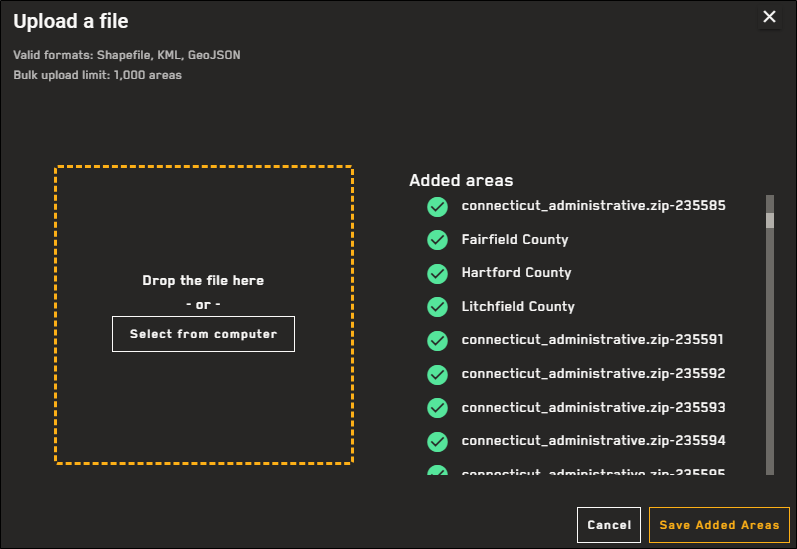
Two examples of imported areas: one imported using a "name" field, and one imported using a unique ID.
-
-
Unaccepted areas/files are indicated by a red triangle
 .
.Areas must be simple, closed polygons. Areas that do not conform to this geometry are not uploaded.
-
-
Select Save Added Areas. The area(s) are saved in the Imagery panel and are added to the viewport.
Import a WKT String
Create an area of interest using an imported well-known text (WKT) string.
-
Select Area from WKT.
-
In the WKT Polygon text box, type or paste a well-known text string.
POLYGON ((-105.06 39.77, -105.00 39.81, -104.93 39.73, -105.01 39.69, -105.06 39.77))
If your WKT is invalid, you will receive an error.
-
Select Continue.
-
More About Importing Areas
-
Areas cannot exceed 5,000,000 sq km. If your area is larger than 5,000,000 sq km, you will receive an error.
-
You can draw/import multiple areas and have multiple areas available in the Imagery panel. However, you can only view Area Imagery Results for one area at a time.
-
If an imported area has more than 1000 vertices, it is automatically simplified to comply with order standards (e.g., fewer than 1000 vertices, simple geometry, no holes, no duplicate vertices, no self-interections, no incomplete polygons, vertices >1m apart).
-
You can search for one or more image IDs using the Imagery panel. If you search for an image ID and the image is found, an area is drawn around the image and it is added to your areas list. Each found image is added as a separate area. Expand any area to view the image and its metadata in the Area Imagery Results panel.
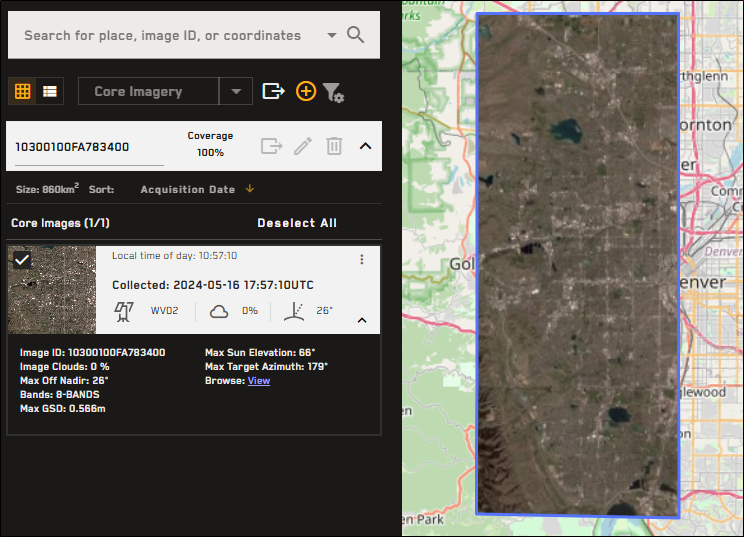
Search for an image ID using the Imagery panel to add the image as an area. Expand the area to view the image and its metadata in the Area Imagery Results panel.
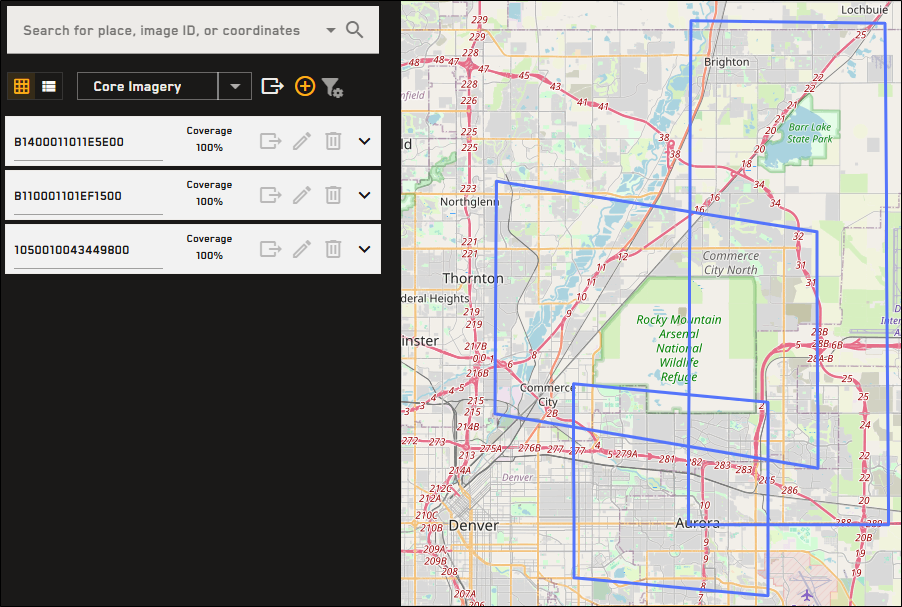
You can also search for multiple image IDs at once to add each image ID as a separate area.