Discover 1.2
These release notes include updates made in the 1.2 and 1.2.2 releases.
Capabilities
The following features are part of Discover 1.2:
Stereo Pairs
You can now search for and view stereo pair imagery in Discover. Stereo imagery products are designed for users with advanced image processing capabilities and photogrammetric tools. This product is ideal for Digital Elevation Model (DEM) generation, 3D visualization and feature extraction applications. Stereo images are collected in-track, meaning on the same orbit, and are acquired at angles optimal for stereo viewing and manipulation.
To view stereo pair imagery, draw an area. From the Product drop-down, select Stereo Imagery. If stereo imagery is available in your area, it will display in the Imagery panel.
Vivid Mosaic Imagery
You can now view and order Vivid Mosaic imagery in Discover. Vivid Mosaics is a suite of high-resolution, high-accuracy imagery basemap products, available off the shelf. From metro to global scale, Vivid Mosaics offer solutions to meet a range of customer needs and budgets.
To view Vivid Mosaic imagery, draw an area. From the Product drop-down, select the Vivid Mosaics product you want to view. If Vivid Mosaic imagery is available in your area, it will display in the Imagery panel.
Enhancements
The following enhancements have been added in version 1.2:
Apps Icon
If you have access to Discover, you can now use an Apps icon in the bottom-left corner of the Discover interface to quickly access other tools, such as the developer portal and Discover.
See Overview: Interface.
Area Cloud Cover
Area cloud cover is now the default cloud cover metadata value when viewing image results in the Imagery panel.
Area cloud cover indicates the amount of cloud cover for an image strip within the selected area, while image cloud cover indicates the amount of cloud cover over the entire image strip. Depending on the size of the area and the location of each image strip in the area, the area cloud cover and image cloud cover percentages for each image strip may be very different, or they may be identical.
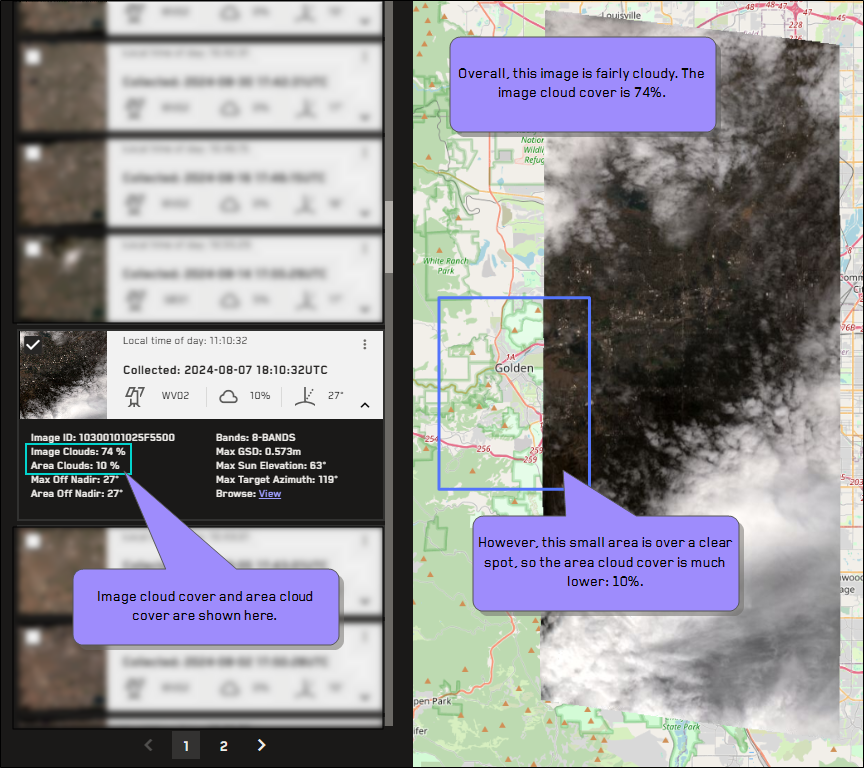
In this example, the image cloud cover is only 13%, but the area cloud cover is 77%.
See Filtering Areas.
Export All Areas and Copy Area Details
You can now use Discover's area export tool to export all areas at once to a GeoJSON, KML, or a Shapefile. Exporting one or more areas lets you save your areas so you can upload them again at a future time, or share them with someone else.
You can also copy the details of a single area or all of your areas to the clipboard, and then paste them into another document or program. This functionality does not technically "export" the area(s), but it does allow you to easily copy details like the area name, catalog ID, and size to the clipboard.
See Exporting Areas.
Multiple Image ID Search
You can now search for multiple image IDs at the same time using the Imagery panel. If you search for one or more image IDs, and the image(s) is found, an area is drawn around the image(s) and it is added to the search results. Each found image is added as a separate area. Expand any area to view the image and its metadata.
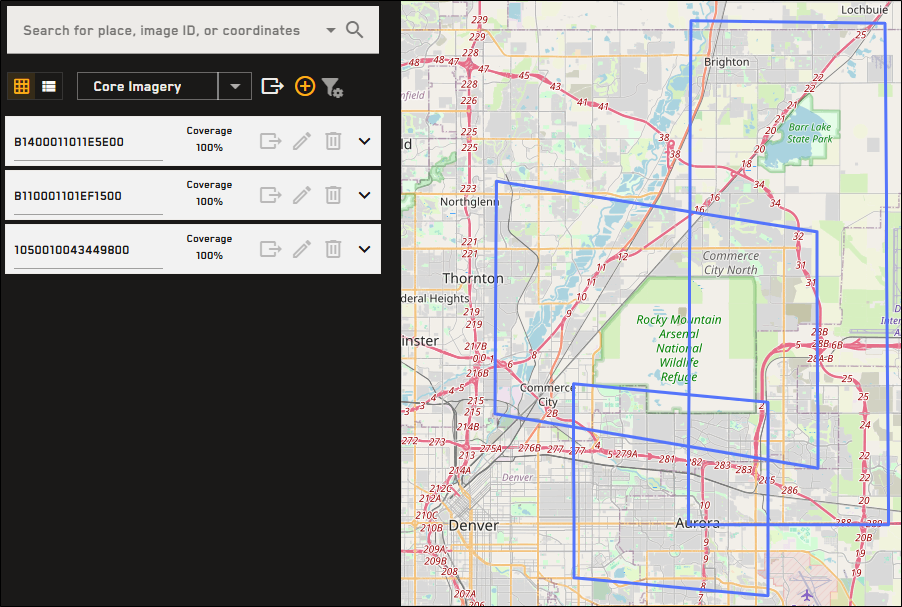
Search for multiple image IDs using the Imagery panel to add each image as an area.
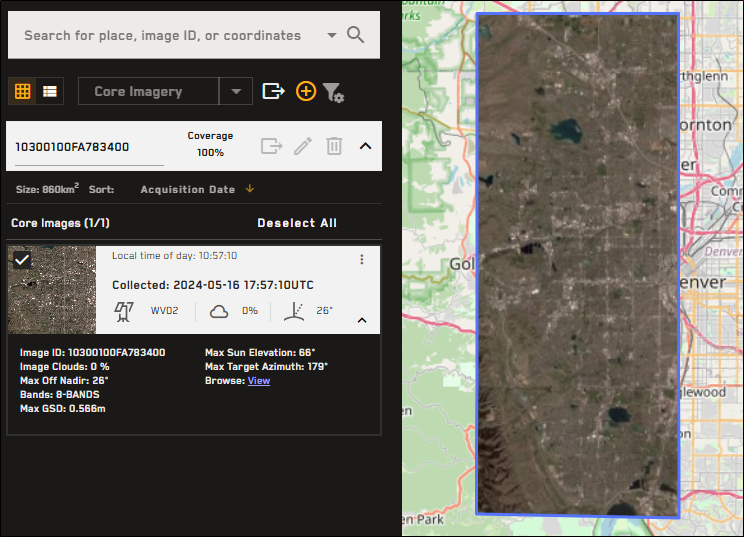
Expand the area to view the image and its metadata.
See Searching.
Open Data Enhancements
Enhancements have been made to the Open Data feature. The most notable enhancement is that all Open Data events are now visible without having to log in to Discover (however, you will need to log in to access event data). The subscription feature, which is no longer in use, has been replaced with social media icons. Some language clarifications make the Open Data feature easier to use and understand.
See Open Data.
Product Drop-Down
A Product drop-down has been added to the Imagery panel. The Product drop-down is a type of filter for the product categories that should display in the Imagery panel (e.g., core imagery, stereo imagery, Vivid Mosaic imagery). Core Imagery is selected by default. When changing product types, your filters and selected images are saved.
Deprecated Features
-
Vivid Premium imagery will be deprecated in the first half of 2024. As of this release, references to Vivid Premium have been removed from the Discover documentation.
-
Self-checkout has been deprecated. You can still place orders by manually submitting the order to Vantor. A Vantor representative will contact you with a quote and to help you place your order. See Ordering Imagery.
-
The order history page has been deprecated.
Documentation Updates
The following update has been made to the documentation in version 1.2.
-
A light mode/dark mode switcher is now available. To switch between viewing the documentation in light or dark mode, next to the Search bar, select Light/Dark Mode
 . Your browser remembers your preference.
Known Issues
The following are known issues in version 1.2:
-
If you use the special characters # _ & ^ ` : in the name or address field when self-registering, you will fail account security checks.
-
If you use a non-US postal code when self-registering, you must use correct formatting (e.g., adding a space for Canadian zip codes), or you will fail account security checks.