Exporting Areas
If you want to export one or more areas, you can easily do this in Discover. Exporting an area lets you save your area so you can upload it again at a future time, or share it with someone else.
You can also export your entire session using a permalink. See Sharing Sessions.
-
Select Imagery
 . The Imagery panel opens.
 -
Do one of the following, depending on how many areas you want to export:
-
Single Area Next to the area you want to export, select Export Area
 .
. -
All Areas In the Imagery panel, select Export All Areas
.
-
-
From the menu that opens, select how you would like to export your area:
-
Export Without Imagery Metadata
-
Export With Imagery Metadata
If you export imagery metadata, it is included as a separate file in the ZIP file.
You can also use Export All Areas to copy the details of all of your areas to the clipboard. This functionality does not technically "export" the area(s), but it does allow you to easily copy details like the area name, catalog ID, and size to the clipboard.
See Copying Area Details.
-
-
Next, from the submenu, select the file type you want to download:
-
GeoJSON
-
KML
-
Shapefile
The file starts downloading immediately and is saved to the Downloads folder on your computer.
-
Exporting an area only downloads the area's geometry and name. If you want the area's geometry to include imagery selections, search results, filter criteria, etc., you can share the area using a permalink. See Sharing Sessions.
When you export an area that does not have 100% coverage, Discover automatically packages the unfulfilled portion of the area along with the complete area for reference.
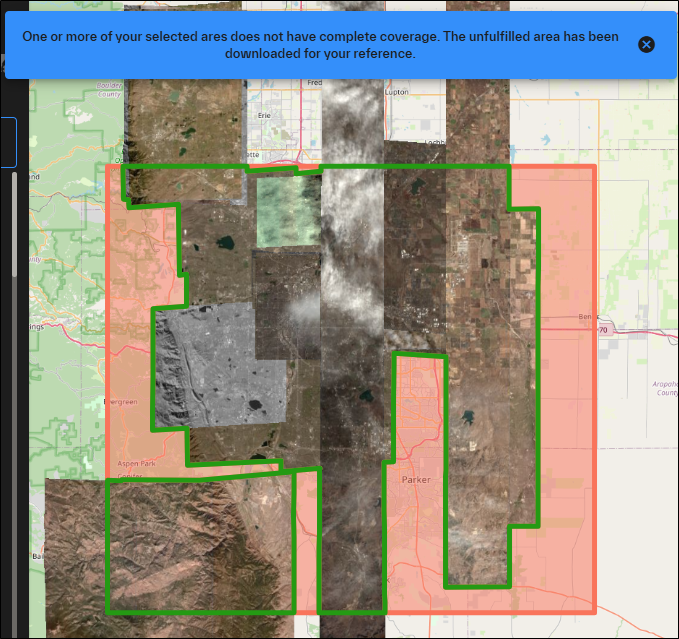
Unfulfillled portions of the area display in red. The entire area is exported for reference.
The Tasking AOI product option only applies to Salesforce users
However, if you simply want to create an AOI for export without returning any imagery, you can select this option. Create an AOI, then export it to use in a third-party program.