Overview: Imagery Panel
You will use the Imagery panel for most imagery-related tasks in Discover, so it's important to know where everything is!
There are three main parts of the Imagery panel:
-
Search and Filters, where you can search for imagery, set default filters, and define the imagery type you want to view;
-
Your Areas List, where you can view your current areas and create new areas;
and
-
Area Imagery Results, an expanded panel where you can view imagery results for one area at a time. These results are visible as tiles or as a list.
Imagery Search, Filters, and Areas of Interest
When you first open the Imagery panel, you search for a location using the Search bar. You can also set your default global filters for all imagery that displays in the viewport (see Filtering Areas). Finally, you can add an area of interest (AOI) using the New Area tool. After you have added an AOI, it displays in the Imagery panel.
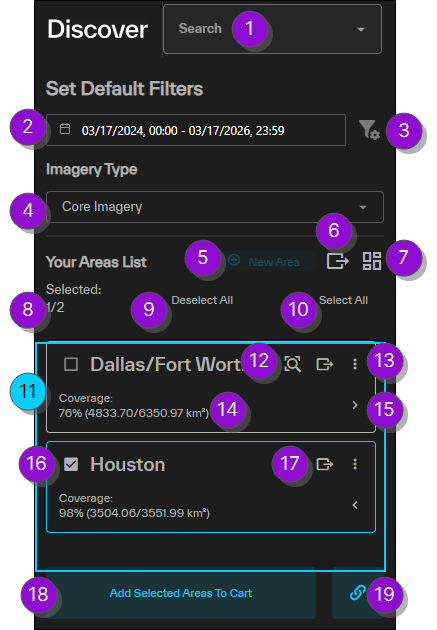
Use the overview image below and its corresponding table to locate tools in the Imagery panel.
| Numbered Area | Description | ||||
|---|---|---|---|---|---|
|
1 Search |
Use the search box to quickly find a location, address, coordinates, or image IDs. When entering a location or address in the search box, matching locations auto-populate in a list. You can optionally select a location from the list to quickly jump to that location. When searching for one or more image IDs, images are added as areas in the search results. See Searching. |
||||
|
2 Set Default Filters: Calendar Picker |
Opens a calendar picker where you can set default start and end dates for imagery filters. | ||||
|
3 Set Default Filters: Global Default Filters |
Opens the Global Default Filters menu. Set global default filter options for all areas. When you set or change global default filters, all areas inherit these settings. If you change area filter settings, global default filters are turned off. When you make new changes to the global default filters, the global default filter changes overwrite any area filters that you applied to individual areas. |
||||
|
4 |
The Imagery Type drop-down is a type of filter that defines which the product categories display in the Imagery panel (e.g., core imagery, stereo imagery, Vivid Mosaics). Core Imagery is selected by default. To see more details about a product category, hover over the information icon When you select a Vivid Mosaic product, additional imagery functionality becomes available in the interface. See Viewing Vivid Mosaic Products. When changing imagery types, your filters and selected images are saved. The Tasking AOI product option only applies to Salesforce users. However, if you simply want to create an AOI for export without returning any imagery, you can select this option. Create an AOI, then export it to use in a third-party program. |
||||
|
5 New Area |
Select the New Area tool to draw polygons and rectangles, or to import an existing area. |
||||
|
6 Export All Areas |
Export all areas to a GeoJSON, KML, or shapefile. Copy all areas' details to the clipboard for use in another program. See Exporting Areas. |
||||
|
7 Show Collects from Past 72 Hours |
Shows imagery collected within the past 72 hours. |
||||
|
8 Selected Areas / Total Areas |
The number of selected areas and total number of areas. |
||||
|
9 Deselect All |
Deselect all areas. |
||||
|
10 Select All |
Select all areas. |
||||
|
11 Areas |
Available areas. Select an area name to edit it. In the viewport, the selected area is outlined in blue. |
||||
|
12 Zoom to Area |
Zoom to the extent of the area. |
||||
|
13 Area Menu |
Copy area details, rename the area, edit the area, or delete the area. See Editing Areas, Deleting Areas, Renaming Areas, and Copying Area Details. |
||||
|
14 Area Image Coverage and Size |
Percentage of the area currently covered by selected imagery. Making additional image selections, removing the current selections, or editing the size of the area may increase or decrease the imagery coverage percentage. Shows the active area's size in sq km. If you edit the area, the area size updates accordingly. |
||||
|
15 Show / Hide Imagery Results |
|
||||
|
16 Area Selection Checkbox |
Select an area. |
||||
|
17 Export Area |
Export the selected area to a GeoJSON, KML, or shapefile. Copy the area's details to the clipboard for use in another program. See Exporting Areas. |
||||
|
18 Add to Cart |
Add selected imagery in selected areas to your cart. Areas must be larger than 25 sq km, smaller than 10,000 sq km, and have 100% coverage to add imagery to the cart. You can add one area to your cart at a time. |
||||
|
19 Permalink |
Create a permalink to save and share your session. See Sharing Sessions. |
 .
.

-
By default, new areas are named “Area <n>”, where n is an incremental number defined by the order in which the area was created.
-
Area name(s) in an imported session are derived from the area(s) in the file.
-
Area names are used as the file name when downloading an area.
-
When you draw a new area, it appears at the top of the search results list.
Area Imagery Results: Tile View
To view imagery available in an area, select  to expand an area. This opens the Area Imagery Results section of the Imagery panel.
In the Area Imagery Results panel, you will see imagery that is available in that area.
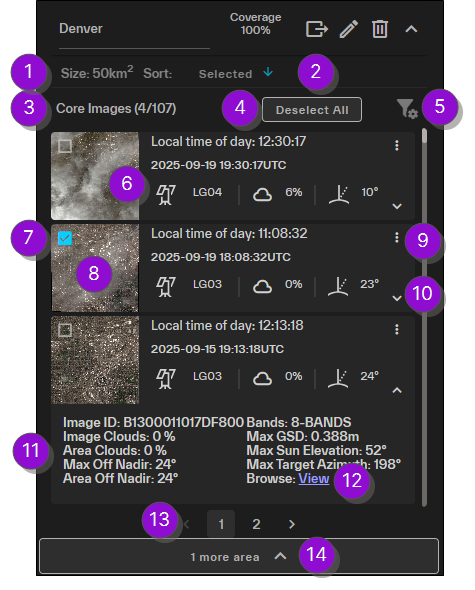
Use the overview image below and its corresponding table to locate tools in the Area Imagery Results panel.
| Numbered Area / Icon | Description | ||||
|---|---|---|---|---|---|
|
1 Tile View |
Tile view is the default view for imagery results. If you are in list view, select this option to switch back to tile view. |
||||
|
2 |
Switch from card view to list view. |
||||
|
3 Sort |
Opens the Sort By menu. You can sort imagery results by several different attributes, depending on the product type selected (e.g., Core imagery can be sorted by acquisition date, ground sample distance, image clouds, image off nadir, selected images, or sensor; Vivid Mosaics can be sorted by selected images or date). By default, search results are sorted with your selected images on top.
|
||||
|
4 Area Filters |
Apply filters to the selected area to narrow down the imagery results to view imagery most relevant to you. You can set different filter criteria for each area in your search results. If you change area filter settings, global default filters are turned off. When you make new changes to the global default filters, the global default filter changes overwrite any area filters that you applied to individual areas. See Filtering Areas. |
||||
|
5 Imagery Selections |
The number of images currently selected out of the number of the number of images available. By default, the imagery results that are the most recent and provide the best coverage for the area are automatically selected and load in the viewport. |
||||
|
6 Move Selected to Top |
Move selected imagery to the top of the current page of results. |
||||
|
7 Deselect All |
Deselects all selected images. |
||||
|
8 Image Selection Checkboxes |
By default, the imagery results that are the most recent and provide the best coverage for the area are automatically selected and load in the viewport. You can add or remove images by selecting the checkbox next to the desired image. Hover over any image tile to show its footprint in the viewport. When adding stereo pairs, you can only select the pair, not individual images. |
||||
|
9 Metadata |
Each imagery card shows basic image metadata. You can view:
When viewing Vivid Mosaics, you will see the resolution; additional metadata is available when expanding the card. |
||||
|
10 Thumbnail |
Each imagery card shows a thumbnail of the image relative to the viewport. Refer to the thumbnail to help determine the imagery you want to select. You can also do the following with thumbnails:
|
||||
|
11 Image Menu |
Select the Image Menu to perform additional imagery tasks, such as viewing in-depth imagery metadata or zooming to the extent of the image. |
||||
|
12 View Additional Metadata |
Expand any row to view additional metadata about that image.
|
||||
|
13 Additional Metadata |
After expanding an image's metadata, it appears below that image. The metadata you can view depends on the product type you selected from the product drop-down. |
||||
|
14 View Browse Image |
Select View to open a low-resolution browse image in a separate tab. Right-click the browse link and select Save Link As... to save the browse image to your computer. |
||||
|
15 Pagination Options |
Navigate between pages of imagery results. Each page displays 100 images. |


Area Imagery Results: List View
To view imagery available in an area, select to expand an area. This opens the Area Imagery Results section of the Imagery panel.
In the Area Imagery Results panel, you will see imagery that is available in that area.
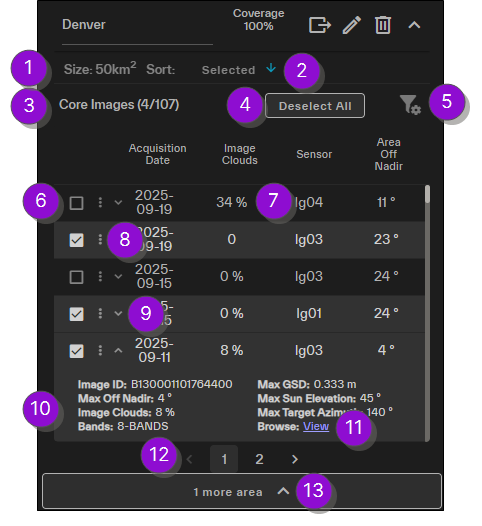
Use the overview image below and its corresponding table to locate tools in the Area Imagery Results panel.
| Numbered Area / Icon | Description | ||||
|---|---|---|---|---|---|
|
1 Tile View |
Tile view is the default view for imagery results. If you are in list view, select this option to switch back to tile view. |
||||
|
2 |
Switch from card view to list view. |
||||
|
3 Settings |
Show or hide columns. |
||||
|
4 Sort |
Opens the Sort By menu. You can sort imagery results by several different attributes, depending on the product type selected (e.g., Core imagery can be sorted by acquisition date, ground sample distance, image clouds, image off nadir, selected images, or sensor; Vivid Mosaics can be sorted by selected images or date). By default, search results are sorted with your selected images on top.
|
||||
|
5 Area Filters |
Apply filters to the selected area to narrow down the imagery results to view imagery most relevant to you. You can set different filter criteria for each area in your search results. If you change area filter settings, global default filters are turned off. When you make new changes to the global default filters, the global default filter changes overwrite any area filters that you applied to individual areas. See Filtering Areas. |
||||
|
6 Imagery Selections |
The number of images currently selected out of the number of the number of images available. By default, the imagery results that are the most recent and provide the best coverage for the area are automatically selected and load in the viewport. |
||||
|
7 Move Selected to Top |
Move selected imagery to the top of the current page of results. |
||||
|
8 Deselect All |
Deselects all selected images. | ||||
|
9 Image Selection Checkboxes |
By default, the imagery results that are the most recent and provide the best coverage for the area are automatically selected and load in the viewport. You can add or remove images by selecting the checkbox next to the desired image. Hover over any image tile to show its footprint in the viewport. When adding stereo pairs, you can only select the pair, not individual images. |
||||
|
10 Metadata Rows |
List view allows you to easily see and compare metadata for multiple images at once. Drag and drop any item in your search results to manually reorder the results. Your image selections "restack" in the viewport accordingly; selections at the top of the Area Imagery Results panel display on top of selections below them in the panel. |
||||
|
11 Image Menu |
Select the Image Menu to perform additional imagery tasks, such as viewing in-depth imagery metadata or zooming to the extent of the image. |
||||
|
12 Pagination Options |
Navigate between pages of imagery results. Each page displays 100 images. |
More About the Imagery Panel
-
Imagery results will not display until you draw or upload an area. See Adding Areas.
-
You can draw/import multiple areas and have multiple areas available in the Imagery panel. However, you can only view Area Imagery Results for one area at a time.
-
By default, imagery results in Discover are visible as low resolution browse imagery. When you draw an area, a message displays indicating that you are viewing products in low resolution. Purchase an image to view it in high resolution. See Cart.